Create account
Name, email, password, tax ID and privacy.


Guide for the fleet admin
Tax ID, street, locality, county and waiting for approval. This is the real Core Fleet Control path, from first sign-up to the dashboard.
Name, email, password, tax ID and privacy.
If the fleet already exists: email, password and OTP.
Street, locality, county, bank, collaborators.
Once verified by the platform administrator (after quick checks on the truthfulness of the data entered) they approve and you are online.
From Sign in → Create an account, or /register. First open and read the privacy notice (another tab, confirm at the bottom). Without that reading the checkbox stays locked.
| Field | Required | What to enter |
|---|---|---|
| Your name | Yes | Full name of who opens the fleet |
| Yes | Becomes the admin user. One email per account | |
| Password | Yes | At least 10 characters |
| Tax ID (CUI) | Recommended | E.g. RO12345678. Fills data from ANAF |
| Company / fleet | Yes | Name you use to recognise the fleet |
| IBAN | No | International format, no spaces |
| Privacy | Yes | Open, read, accept |
After the tax ID the site tries to pull from ANAF legal name, ONRC, address, city and VAT. Always check: ANAF can be incomplete. Then Create account: you land on the data form. The fleet starts as Pending.
From the site open Sign in. Title: Welcome back. Email and password. The eye in the field shows or hides the password.
| What | Detail |
|---|---|
| Forgot password? | Email link, valid 60 minutes, once only. If the fleet is suspended recovery does not start. |
| OTP | If enabled on the account, after the password a 6-digit code arrives. Lasts 10 minutes, max 5 attempts. |
| After sign-in | Incomplete data → fleet form. Under review → waiting page. Approved → /app dashboard. Session: 4 hours. |
Page Tell us about your fleet. Same fields later in Fleet settings. Needed for invoices, contracts and e-Factura.
| Field | Now | How to fill it |
|---|---|---|
| Country | Fixed | Romania. Cannot change. |
| Tax ID (CUI) | Strongly recommended | With or without RO. ANAF button: pre-fills legal name, ONRC, street, locality, VAT, sometimes IBAN. |
| Legal name | In practice yes | Legal name as in ANAF / ONRC certificate. Appears on invoices. |
| ONRC no. | Recommended | E.g. J40/1234/2020. Often comes from ANAF. |
| VAT payer | Yes | Yes or No. Default VAT in the platform: 21%. |
| Address (street, number) | Recommended | Street, number, block if needed. This is the tax seat. |
| Locality | Recommended | City or commune, e.g. Iași, Bucharest. |
| County | Recommended | Pick from the menu (județe). Do not type freehand. |
| Company email | Recommended | If empty, uses the login email. |
| Phone | Recommended | E.g. +40 … |
| IBAN | Needed for the first invoice | No spaces. Otherwise before invoicing. |
| Bank | No | Bank name. BIC and invoice series: Settings, after approval. |
Pick the closest range: 1-10, 11-50, 51-200, 200+. Not the exact rider count.
One or both: Courier / delivery and Ridesharing. Can change later.
When the data looks good, press Continue.
Title: Your request is under review. A superadmin checks the organisation. An email reaches the registration address when the account is approved. The page refreshes on its own and takes you to the dashboard.
If the request is not accepted you see a rejection message: sign out and contact who runs the platform.
Sign in again if the session expired. The dashboard opens. Company data is reviewed in Settings: same fields as above, plus BIC and invoice series (default UNI).
Then: companies (SRL/PFA), couriers, import, calculations, invoices, subscription. The 14-day trial starts from approval.
All of this and even more.
Invoices leave from here, fully automatic after access and send authorisations. More detail after registration.
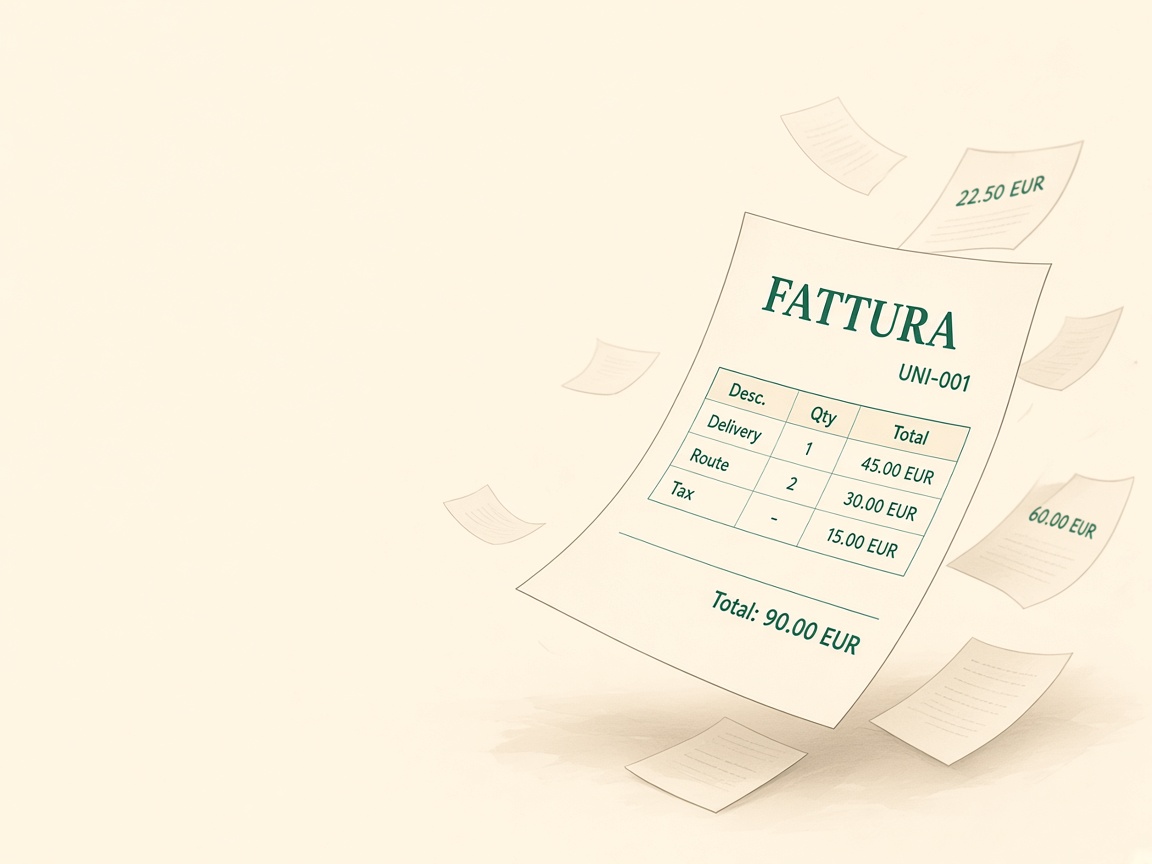
SEPA transfers in XML: send everything at once and you are done, funds credited.

Calculations for every employee, PFA or fleet: each gets their weekly statement.
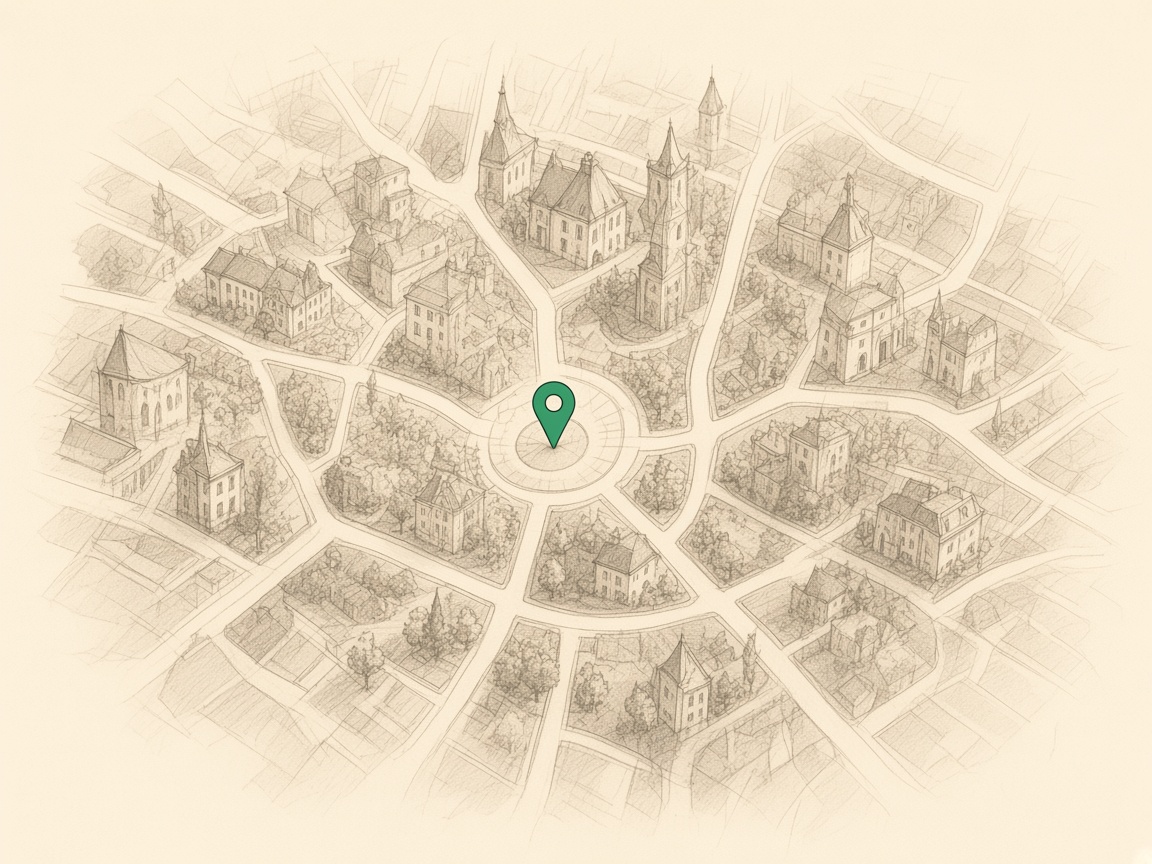
With the rider’s approval you know where they are, in real time. If they are in traffic or the vehicle stops, you help from there.
A fleet is not only payout. There are vehicles, where people sleep, how much rent is, fuel, parts, who repairs and who waits.
Then people: couriers, companies, absences, documents, equipment. Who brings a friend. Who writes in the inbox. Campaigns, locations, quality.
And more: import, finance, advances, expense notes, time clock, payments. Invoices, proformas, credit notes, receipts, delivery notes, suppliers. Tickets, hub, alerts, subscription. The team, templates, the phone app.
And much more, … after registration.